[ 00 ] Field guide / WAG Rwanda
Using Kyshik, dog by dog.
Kyshik recognises dogs from their photos and keeps each dog’s record: vaccination, sterilization and microchip. Each time you photograph a dog, Kyshik checks it against the dogs already in the campaign. The app suggests. You decide.
- Field app
- kyshik.com/mobile
- Coordinators
- kyshik.com/dashboard
- Phones
- Android and iPhone
- Help
- Report a problem · WhatsApp group
[ 01 ] Joining
Before the first day.
Do this once, on the phone you will use in the field.
Open your invitation email
Each person receives an invitation email from Kyshik. Open it on the phone you will use, create a password, then confirm your email.
Can’t find the email? You can also sign up at kyshik.com/mobile with the email address you were invited with.
Add Kyshik to the home screen
Android (Chrome): menu ⋮ → Add to Home screen. iPhone (Safari): Share → Add to Home Screen. From now on, open Kyshik from that icon.
Allow the camera and location
When the phone asks, tap Allow for both. Location records where each dog was seen.
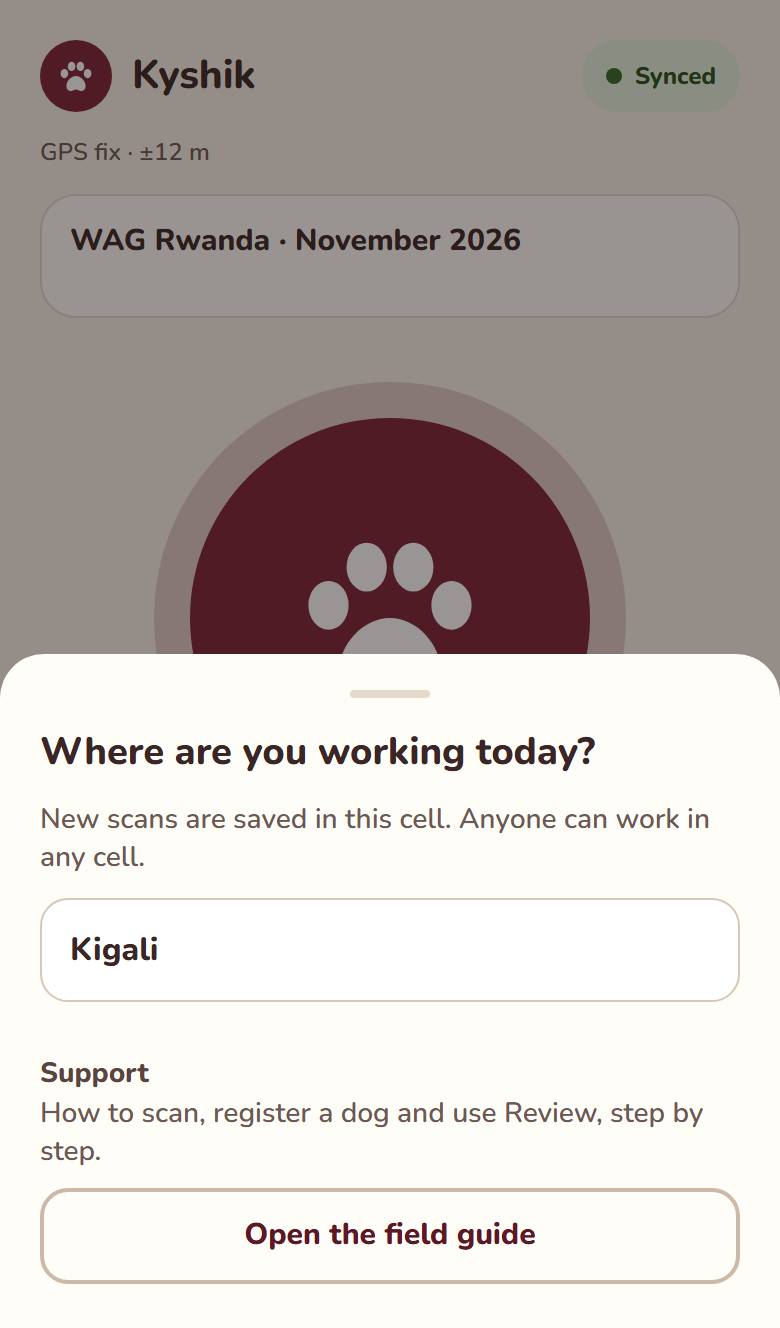
Choose your cell
Tap Choose your cell and pick the cell where you work today. Anyone can work in any cell.
[ 02 ] Every dog
Photograph every dog.
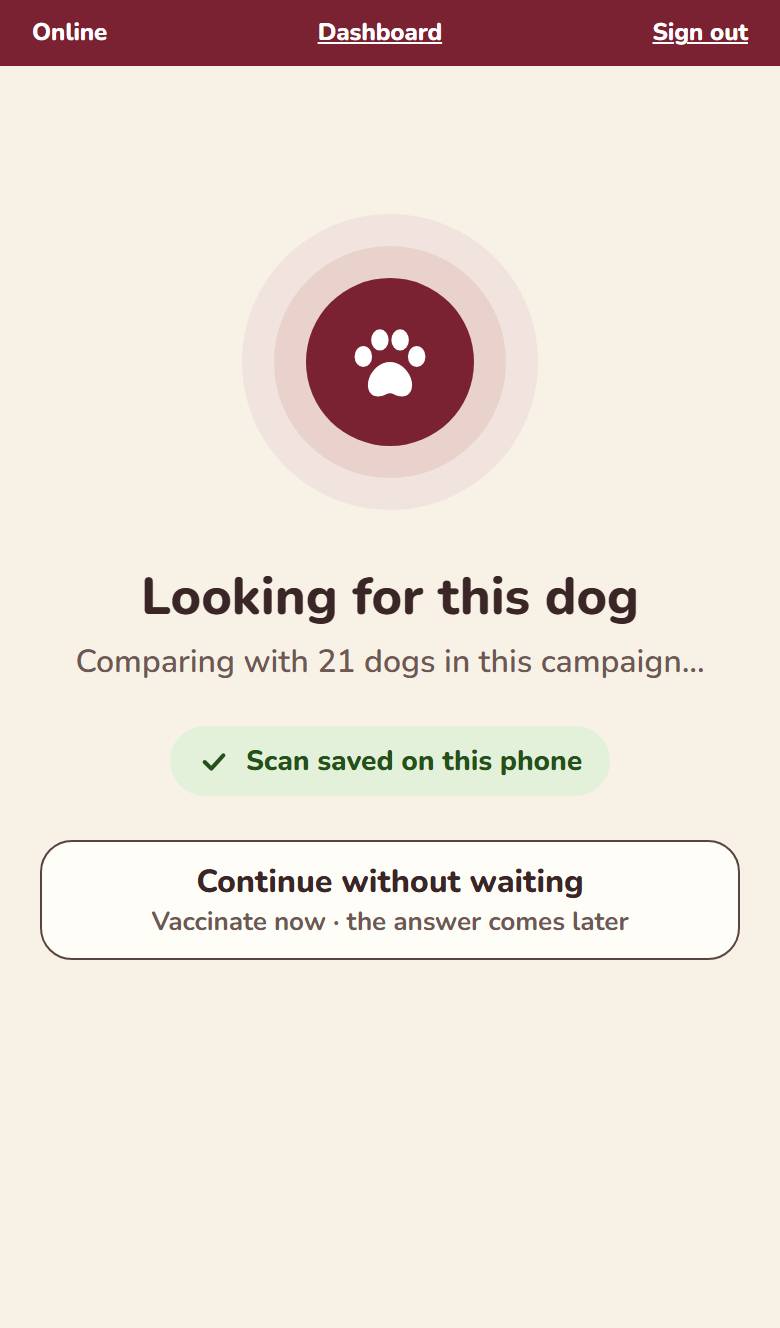
One scan per dog, with the dog in front of you. The scan is saved on the phone first.
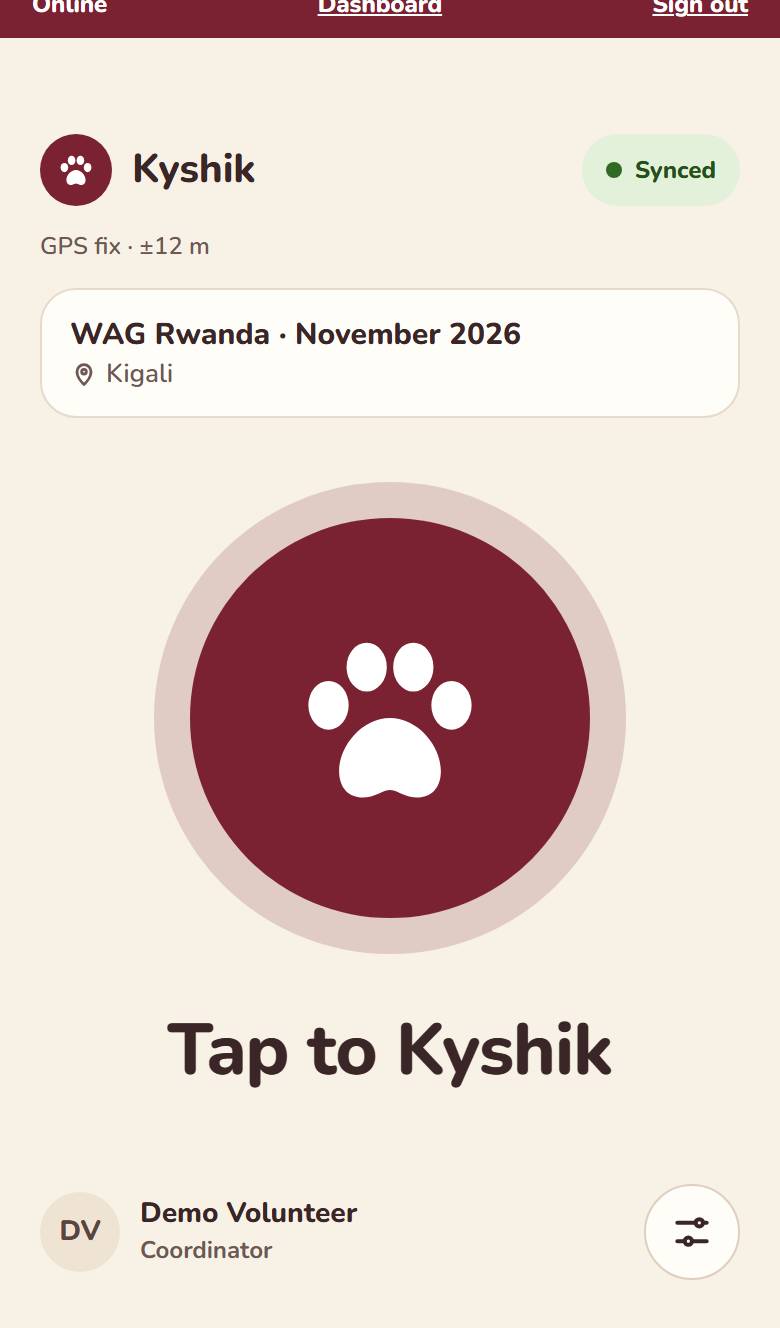
Tap the paw
Tap the big paw button, Tap to Kyshik.
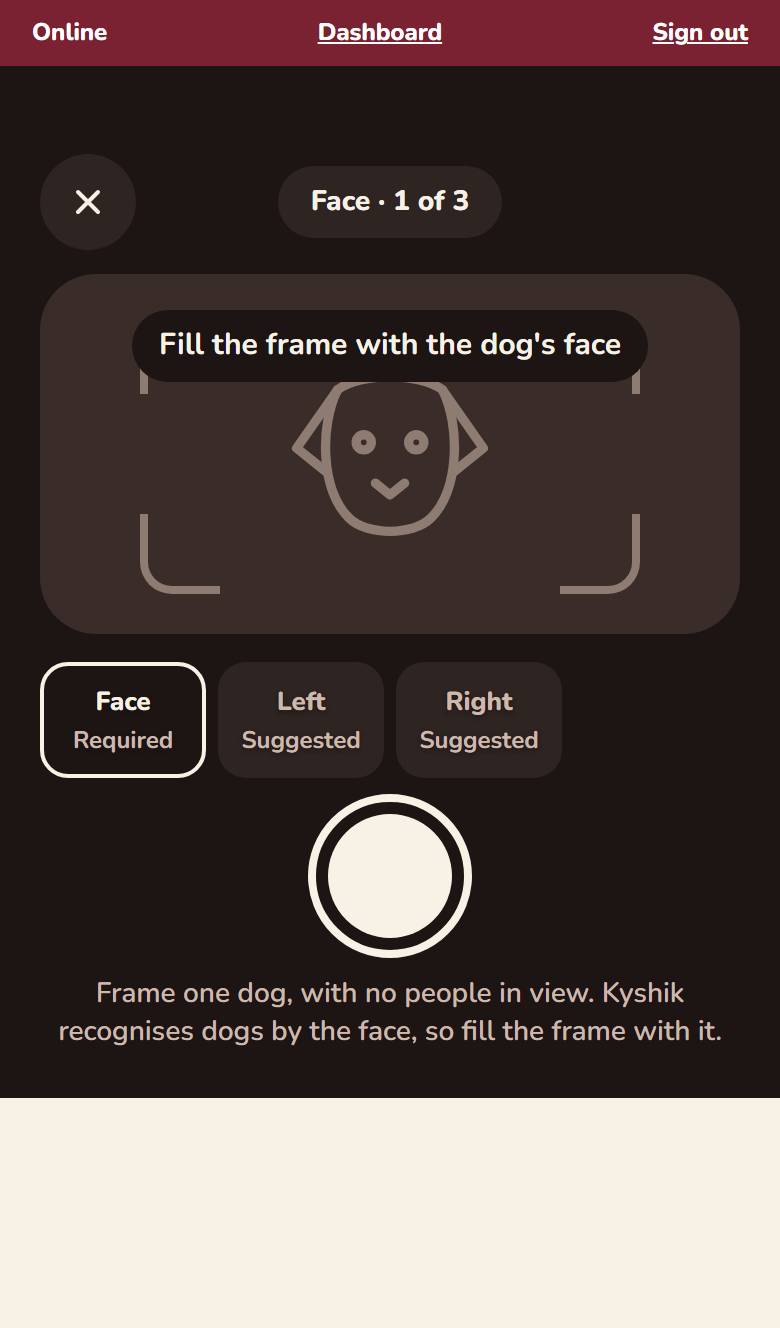
Take the photos
- FacerequiredThe whole head in the frame, one dog only, no people.
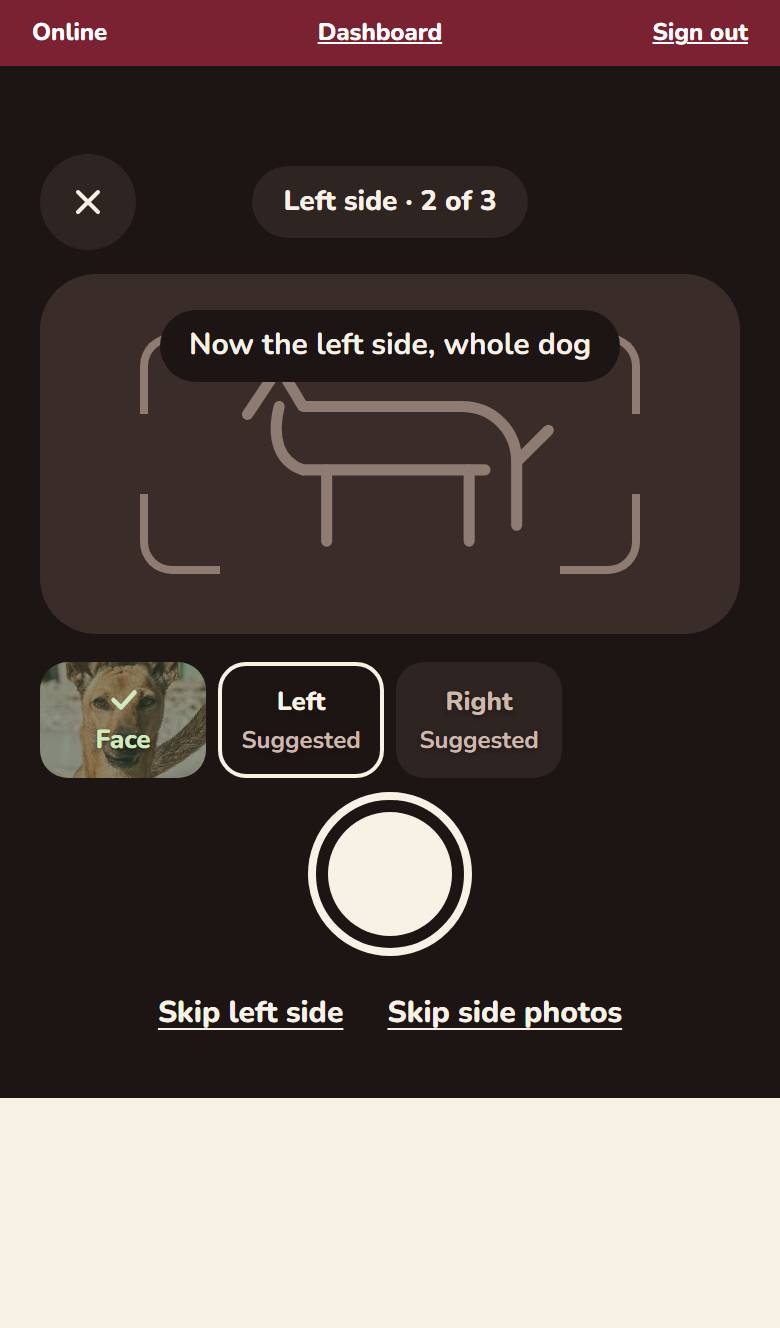
- Left and right siderecommendedThe whole dog from the side. Side photos give the best matches. If one side can’t be photographed, tap Skip left side or Skip right side; Skip side photos skips both.
Check, then search
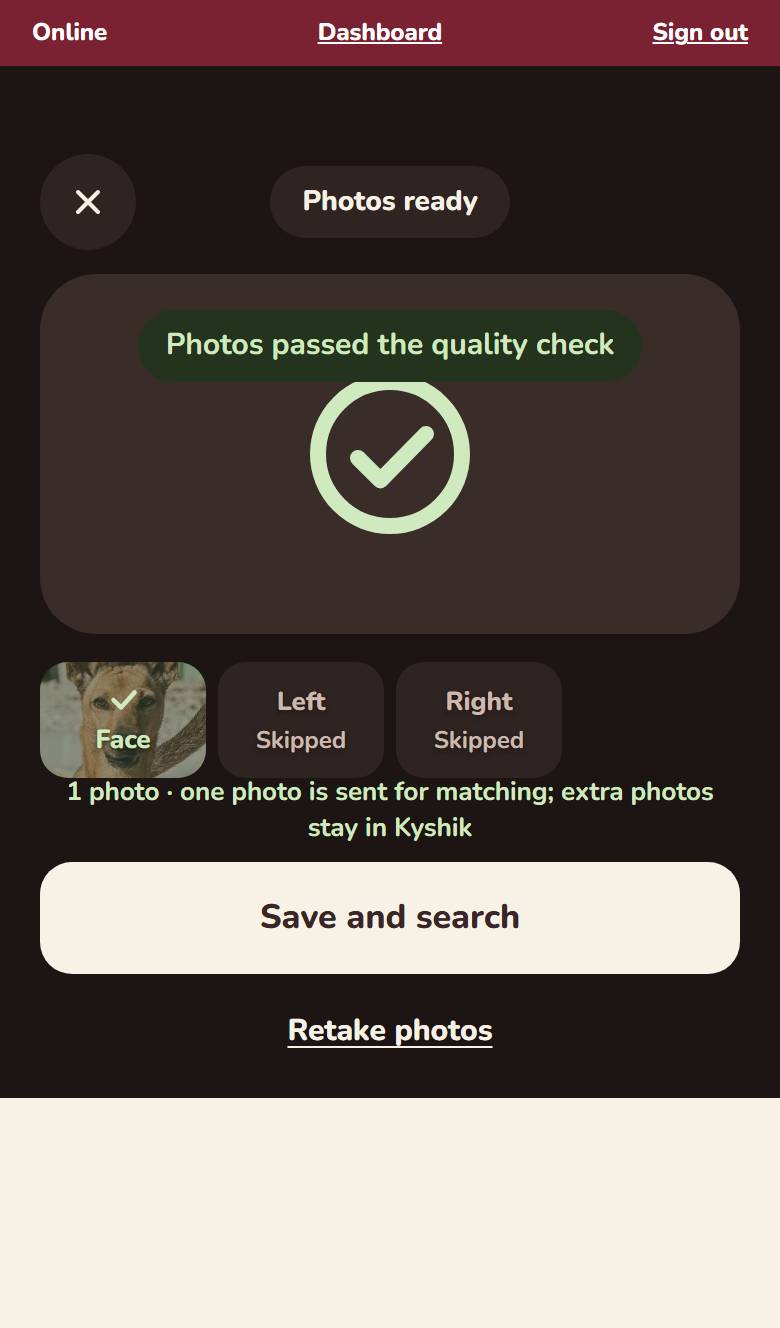
Before you tap Save and search, you can replace any single photo; the others stay. Take a photo again if the app marks it Too dark or Too blurry.
If Kyshik couldn’t see a dog
If the app says it couldn’t see a dog in the photo, retake the photos: one dog, with the whole head in the frame.
Read the answer
One of three answers appears.
[ 03 ] Answers
The three answers.
After the search, one of these screens appears. Compare the photos: Kyshik suggests, you decide.
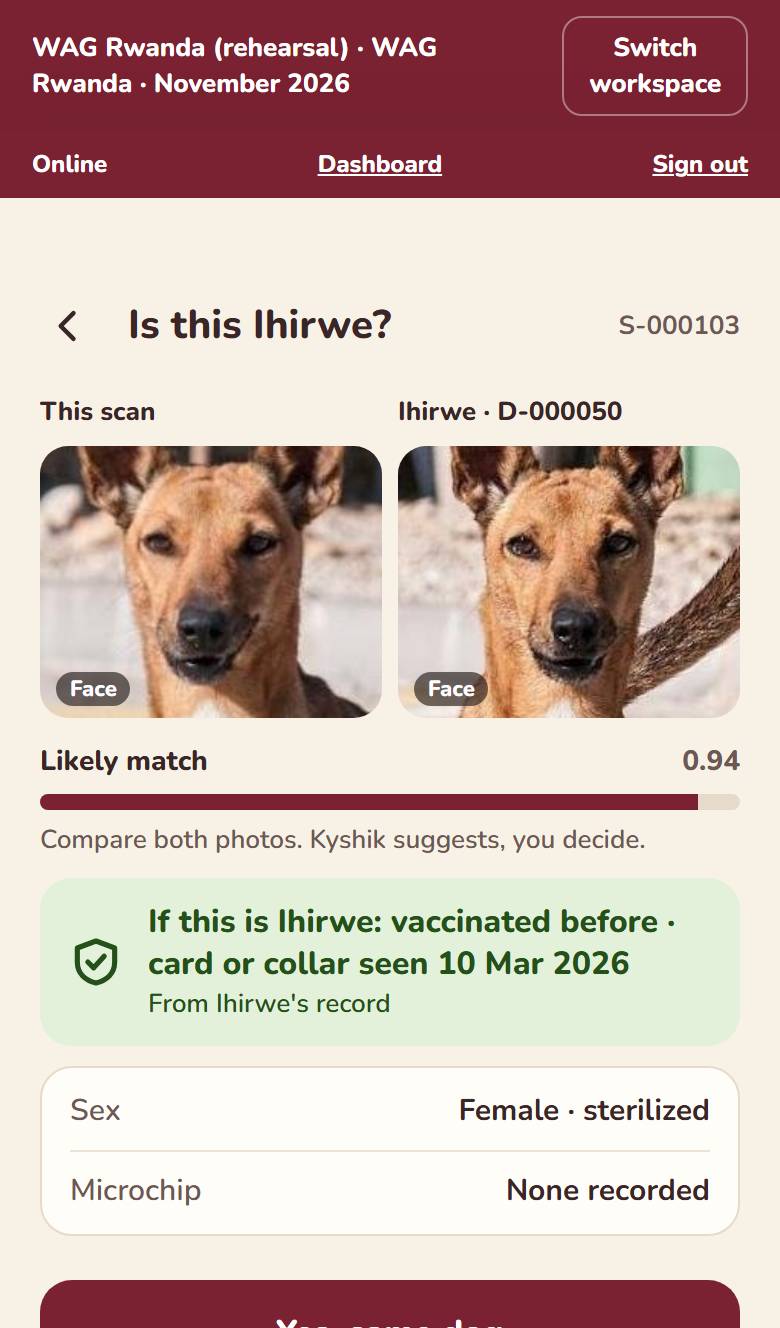
Likely match
“Is this Bella?”
Kyshik thinks it is a dog already registered. Compare this scan with Bella’s photos.
Possible dogs
“Is it one of these?”
No clear match, but a few dogs look close. Tap one to compare.
New dog
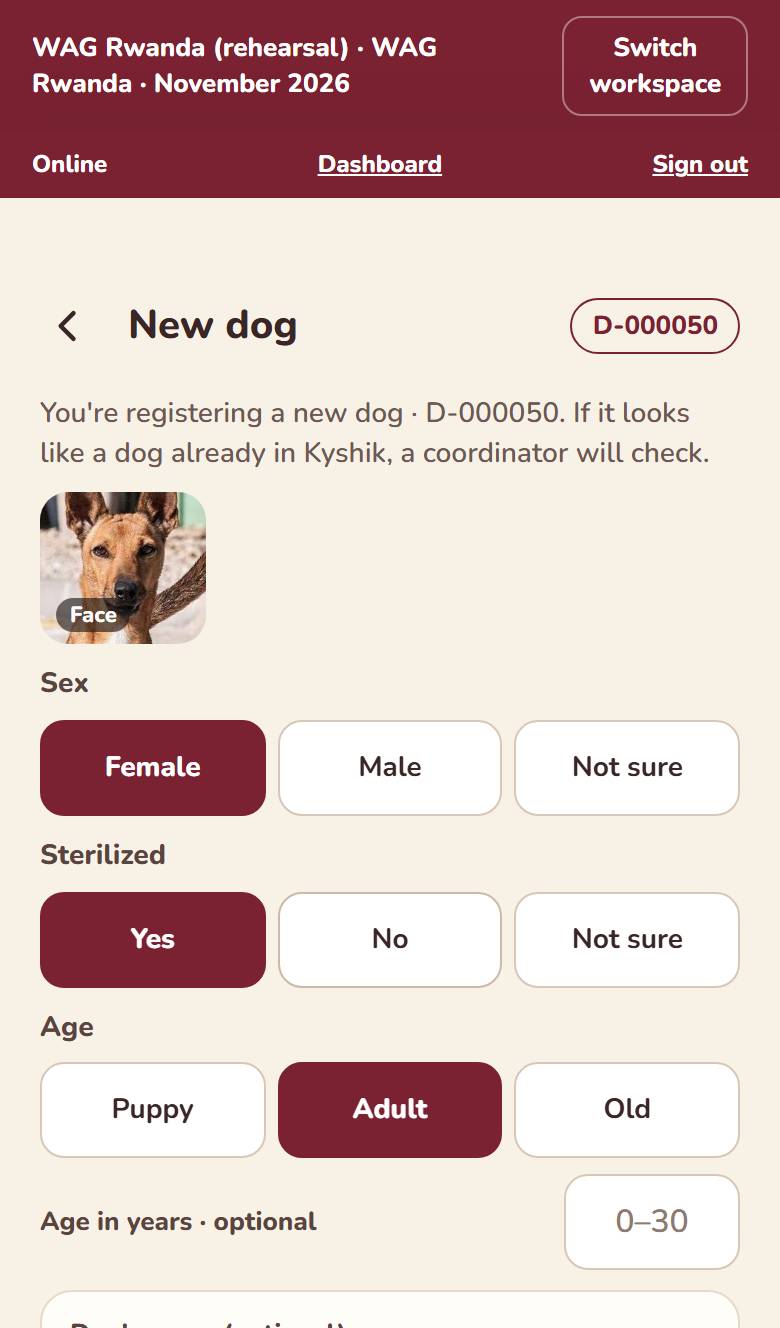
“New dog”
Nothing in the campaign looks close, so the new dog form opens straight away. This dog is not in Kyshik yet.
When you are not sure, send it to Review. Tap Not sure · send to Review. A coordinator compares the photos later on the dashboard. You can still answer “Vaccinated today?” and move on to the next dog.
[ 04 ] New dog
Registering a new dog.
Sex, sterilized, age and “Vaccinated today?” are needed. The rest helps when you have it.
- Sex
- Female, Male or Not sure.
- Sterilized
- Yes if the dog was sterilized today or before; No; or Not sure.
- Age
- Puppy, Adult or Old. If you know the age in years, add it too.
- Name
- Optional.
- Microchip number
- The number of the chip implanted today.
- Collar tag, paint mark
- Optional. Anything that helps recognise the dog.
- Owner’s name, phone and email
- Optional, and only with the owner’s agreement. Only the campaign team can see them.
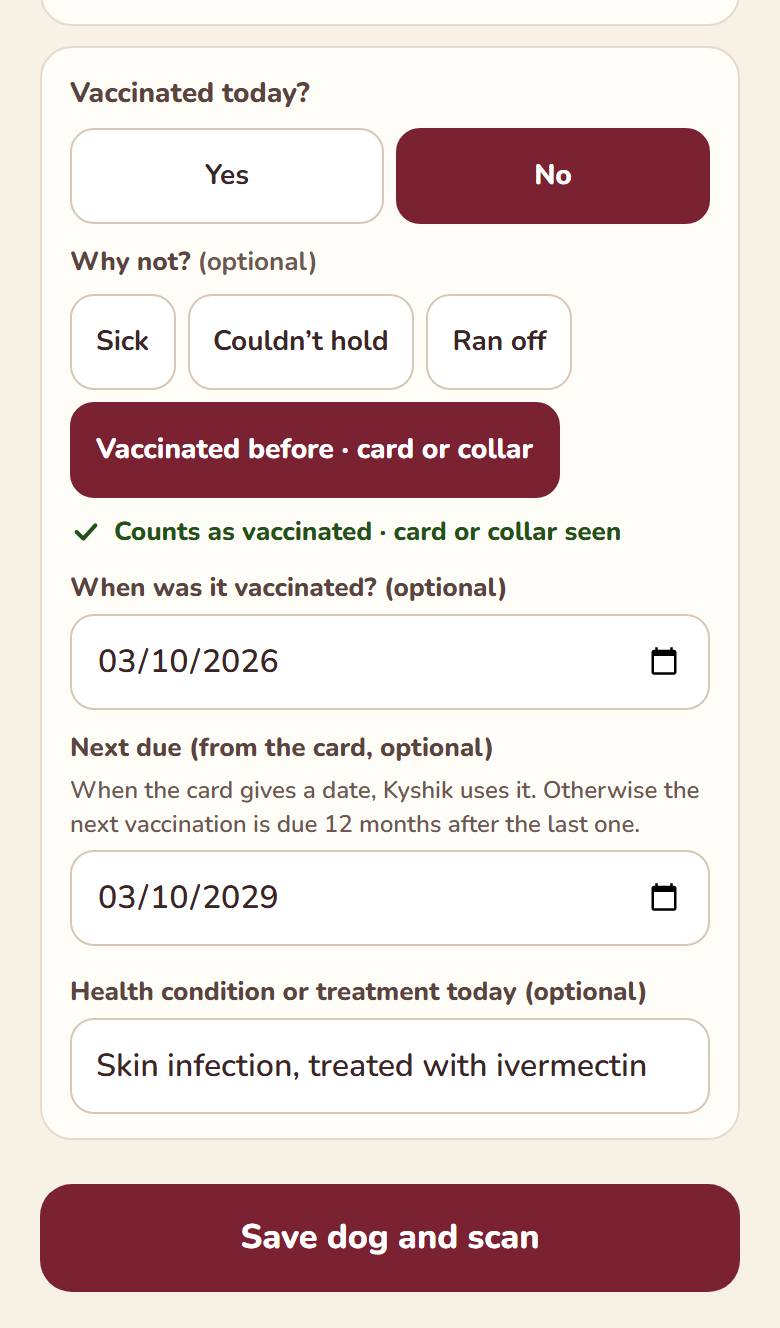
- Vaccinated today?
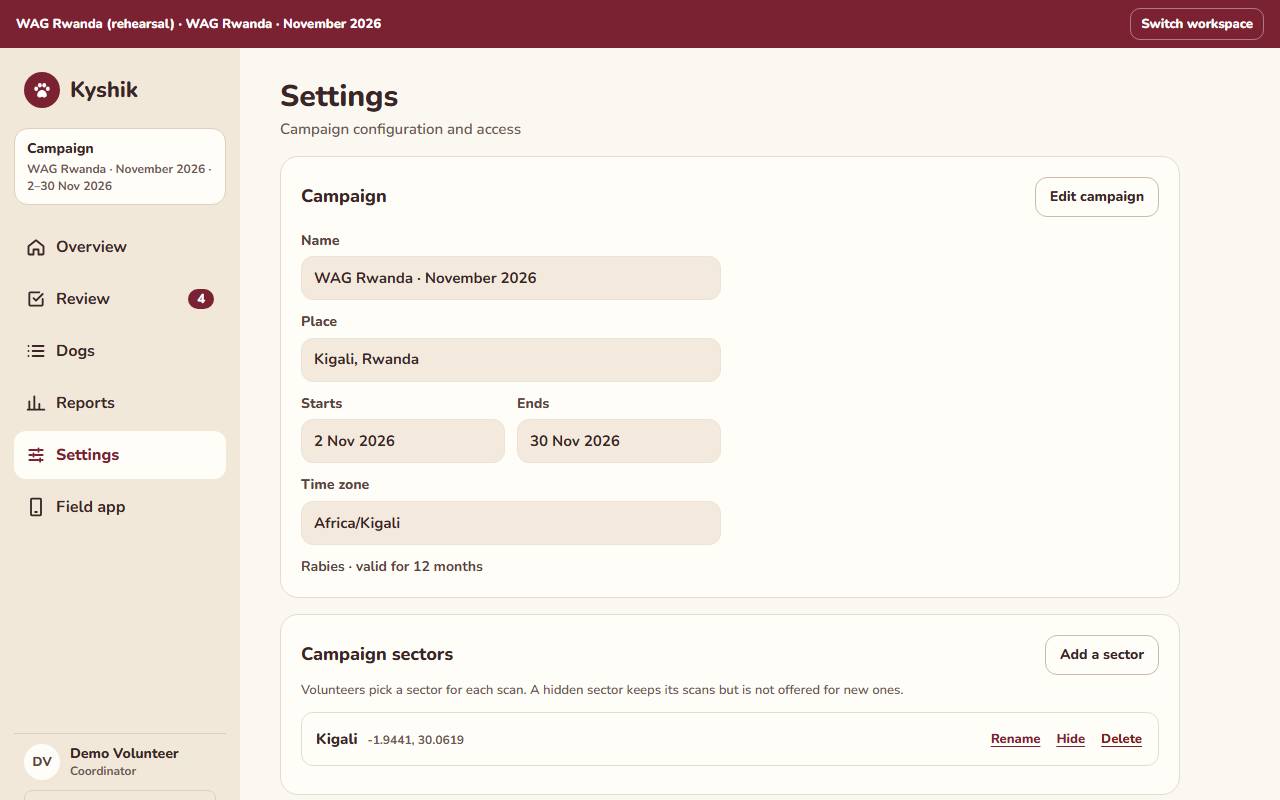
- Yes, or No and choose why: Sick, Couldn’t hold, Ran off, or Vaccinated before · card or collar. For Vaccinated before, add the date from the card if it shows one, and Next due if the card gives it (a 3-year booster, for example). Without Next due, the next vaccination is due after the campaign’s period, 12 months unless changed in Settings.
- Health condition or treatment
- Optional. What you saw or treated today, for example “skin infection, treated with ivermectin”. Use it too for dogs that came to the clinic for something else.
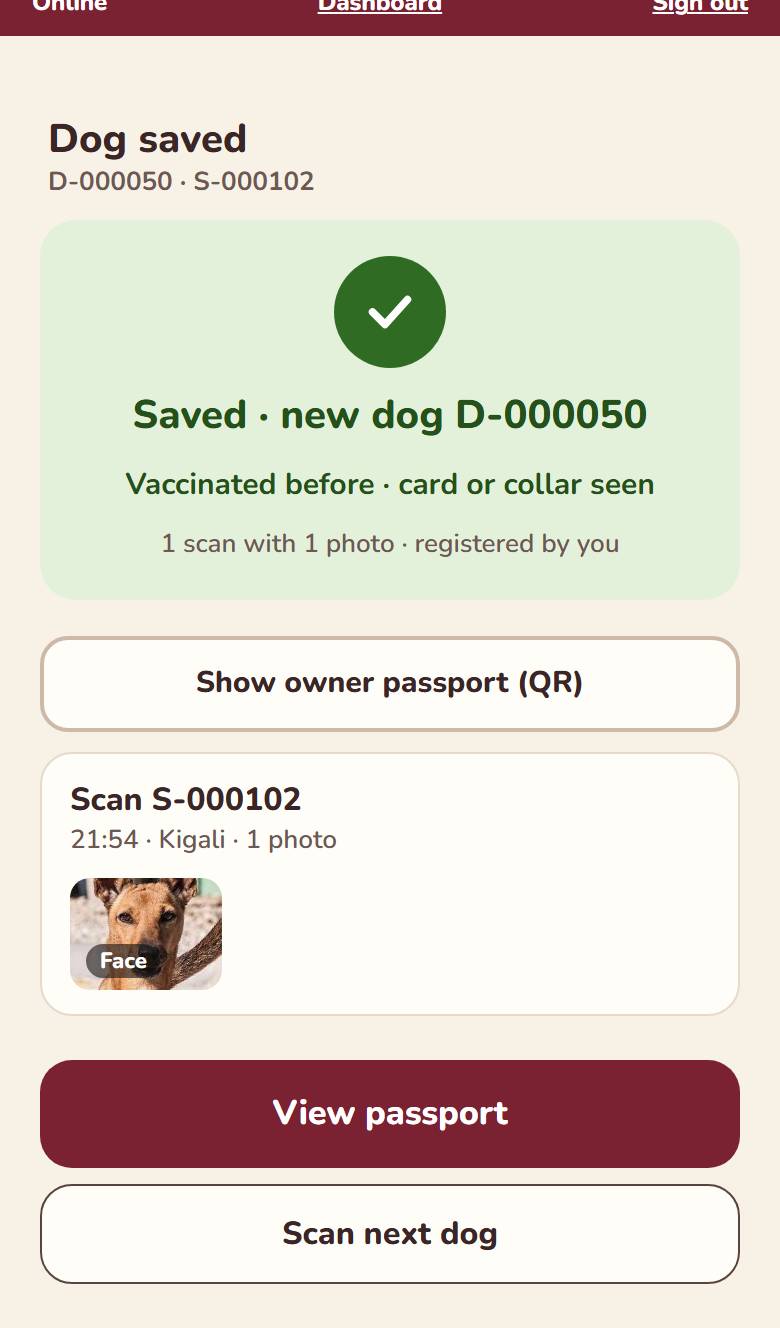
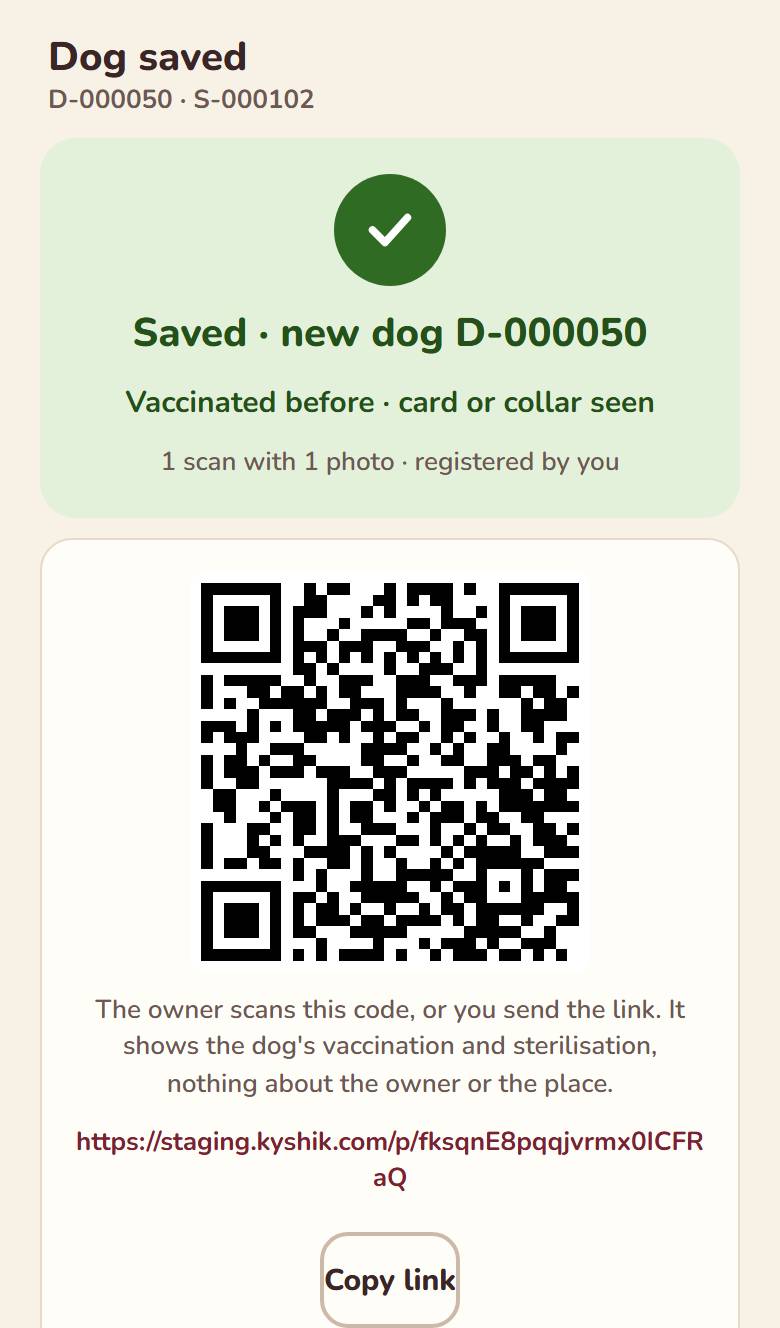
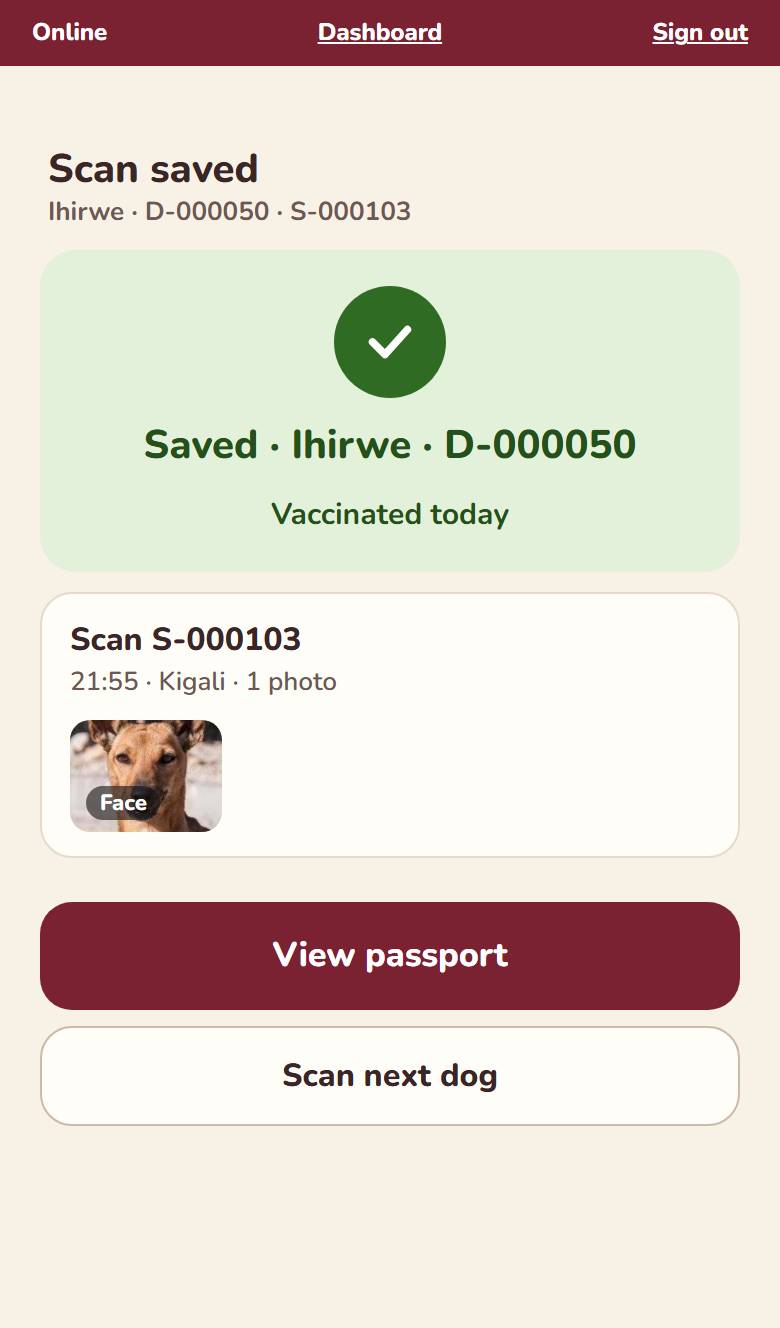
Then tap Save dog and scan. Kyshik shows the dog’s Kyshik ID, for example D-000123.
Shelter dogs already vaccinated and sterilized: register them like any dog. Sterilized: Yes. Vaccinated today?: No · Vaccinated before, with the date of that vaccination and, if the card shows it, the next due date.
Note the Kyshik ID in your own records. It is the quickest way to find the dog again, or to tell the team which dog a problem is about.
[ 05 ] Known dog
A dog already in Kyshik.
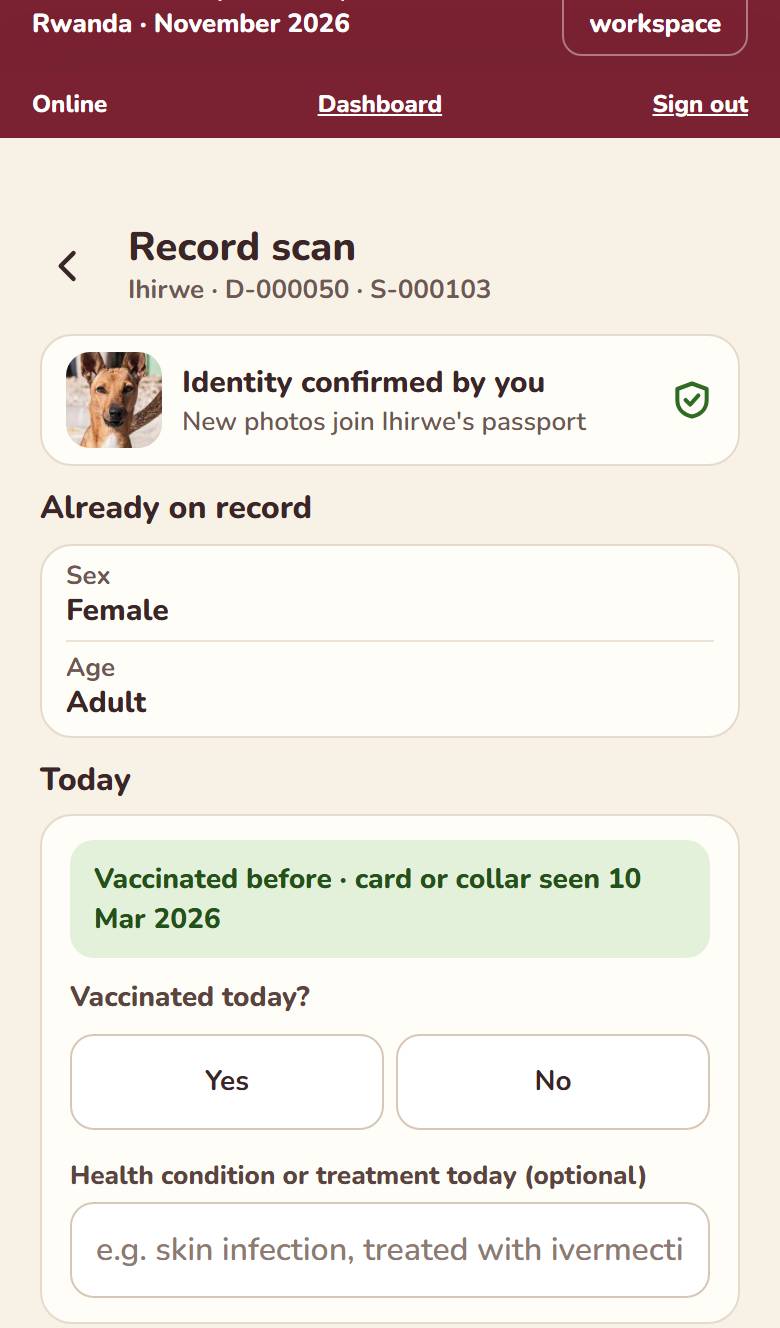
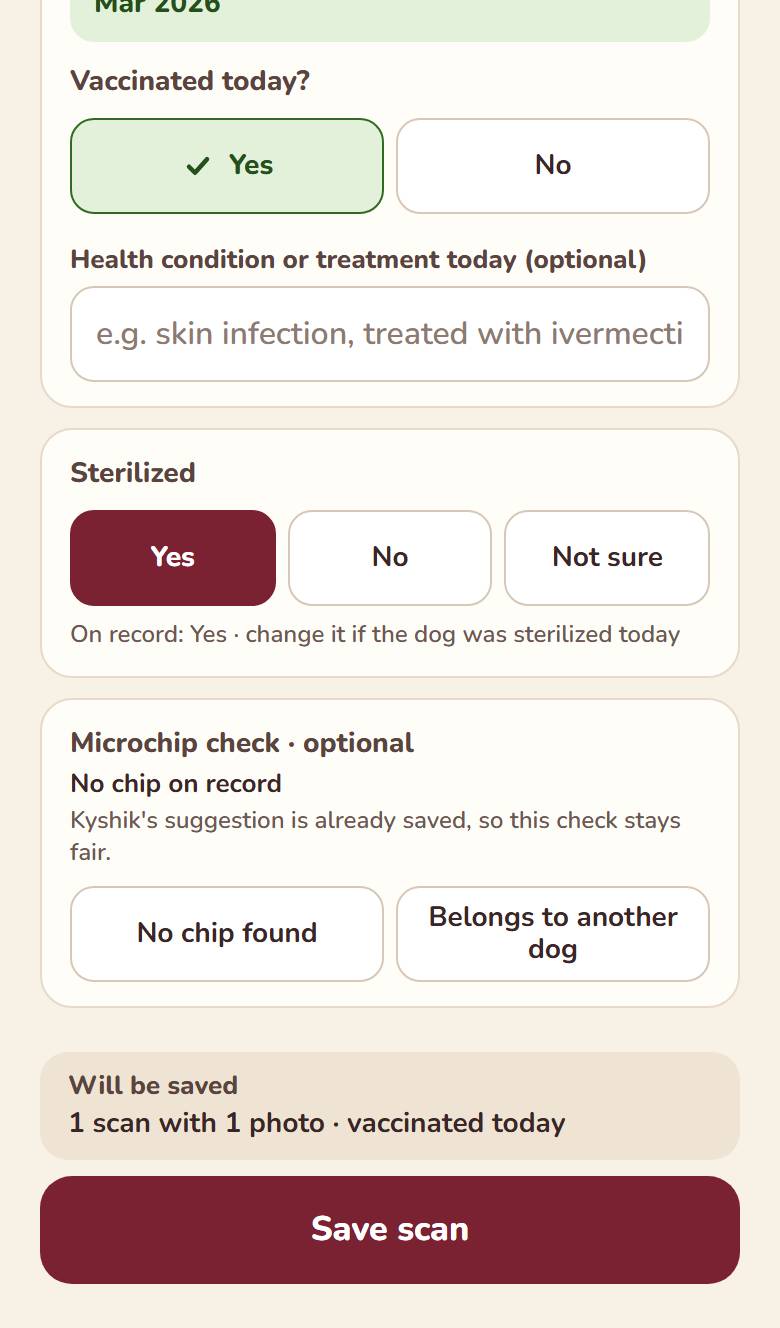
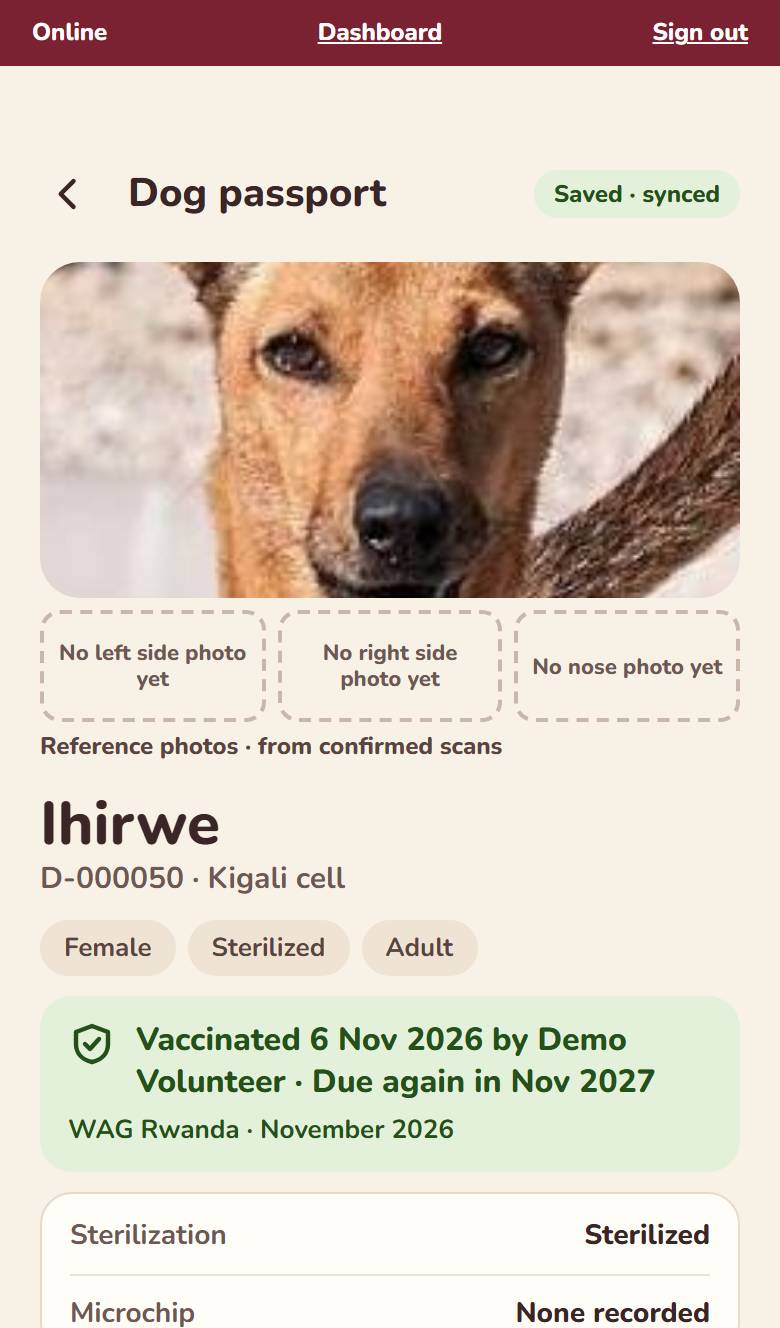
After you confirm the dog, the Record scan screen opens.
Check what’s on record
Record scan shows what Kyshik already has for this dog: vaccination, sterilization and microchip.
Answer “Vaccinated today?”
Yes, or No and choose why.
Sterilized today?
If the dog was sterilized today, set Sterilized to Yes.
Microchip check
If you scanned the chip, choose the result: Matches, No chip found or Belongs to another dog.
Save
Tap Save scan.
[ 06 ] No signal
No signal? Keep working.
Scans and answers are saved on the phone and sent automatically when the signal returns. The top bar of the app shows whether anything is still waiting.
Don’t sign out while scans are waiting. Until they are sent, they exist only on this phone.
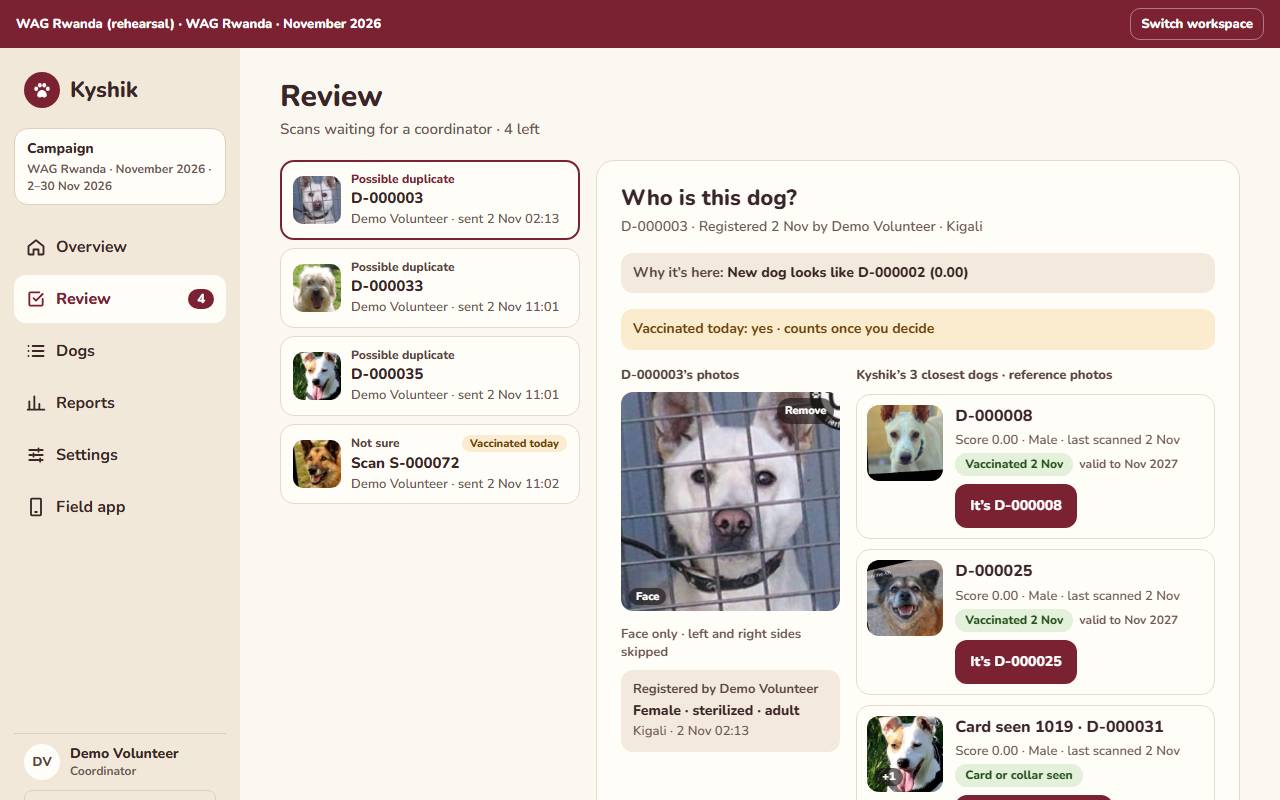
Review
Scans that need a person
Compare the photos, then choose the dog, or New dog to register it.
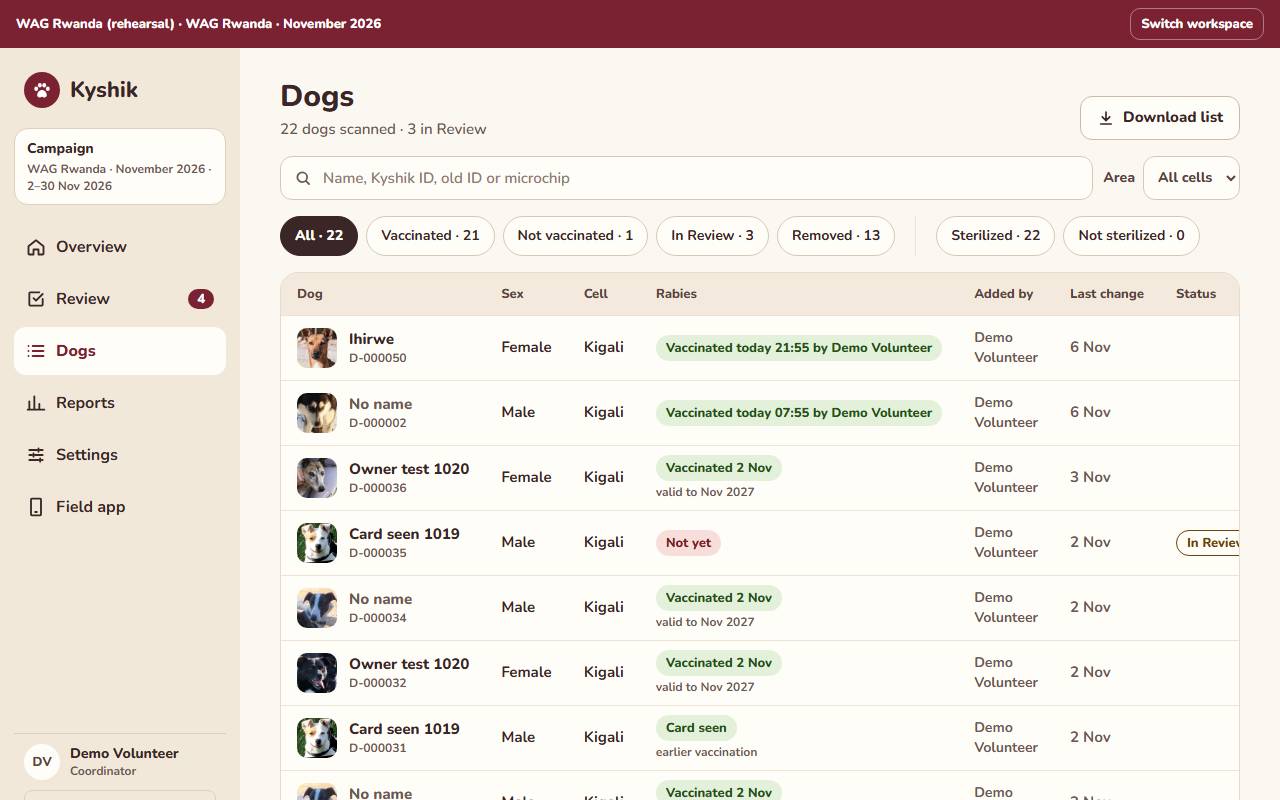
Dogs
Every dog in the campaign
Show only dogs that are vaccinated, not vaccinated, sterilized or not sterilized. Download list saves the list as a spreadsheet.
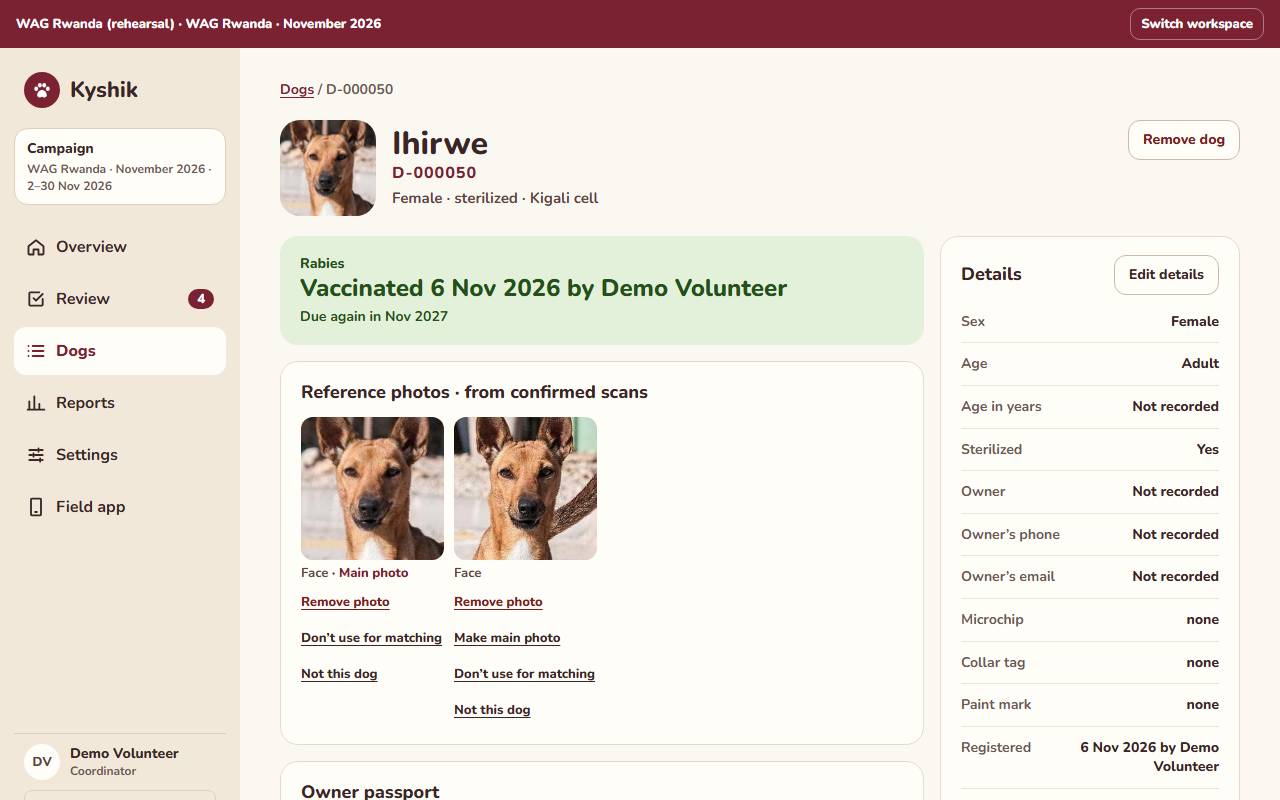
Dog page
One dog’s record
Edit details such as sterilization, age or owner. Remove a photo if needed, for example when a person is in the frame.
People
Inviting your team
Each person you invite gets an email from Kyshik. If it doesn’t arrive, tap Send again.
[ 08 ] Problems
If something goes wrong.
Tap Report a problem in the app, or write in the campaign’s WhatsApp group. A screenshot and the dog’s Kyshik ID help us fix it quickly.
Kyshik suggests matches. A person always makes the final decision.